How to Add or Remove Agents from a Call Queue
⚠️ Note: You must have Office Manager scope or higher to add or modify call queues.⚠️
Edit Agents in a Call Queue
- Log in to nova.vestednetworks.com
- Click the "Call Queues" tab at the top of the screen.
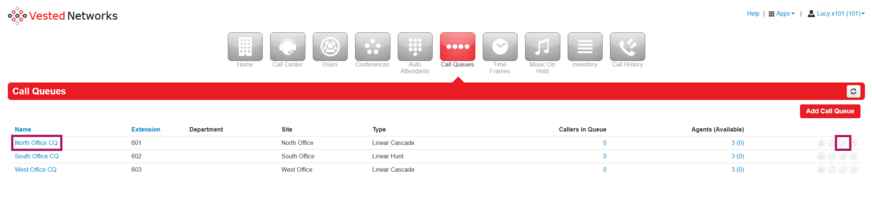
- Locate the desired call queue.
- Click on either:
- The “Agents” column, or
- The “Edit Agents” icon (far right side of the call queue).


Add an Agent to a Call Queue
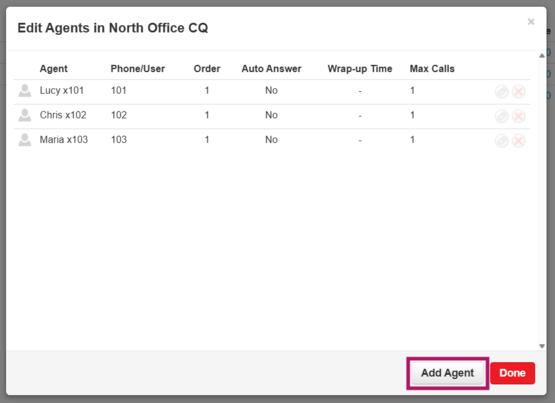
- In the agent editor window, click the "Add Agent" button at the bottom.
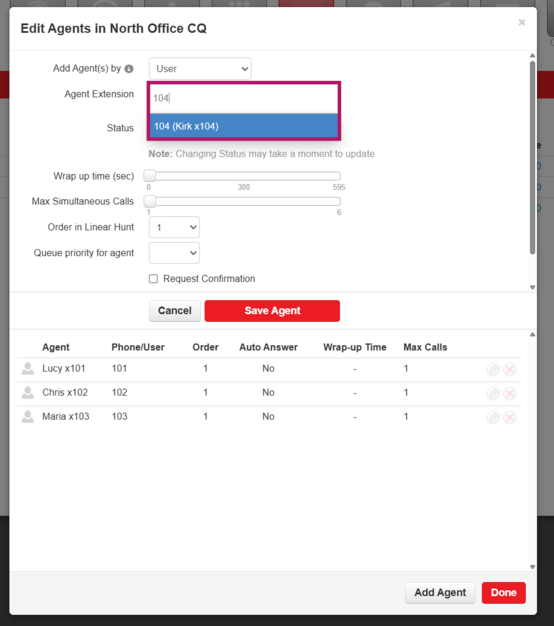
- In the top search bar, type the user’s name or extension.
- Click the matching blue pop-up result.
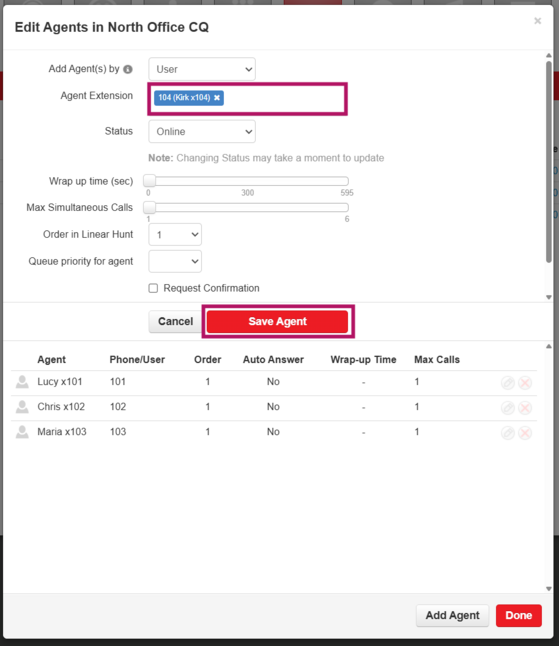
- Click the red "Save Agent" button.
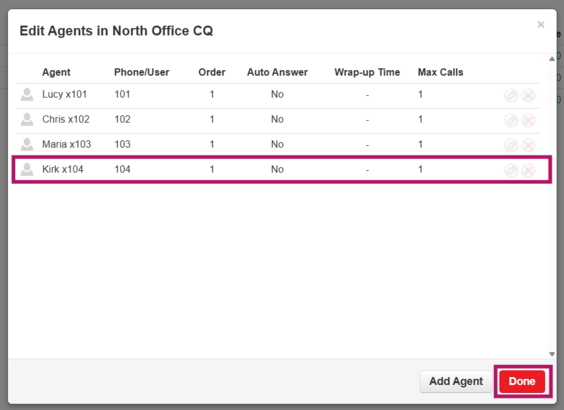
- Then click the red "Done" button.


Remove an Agent from a Call Queue
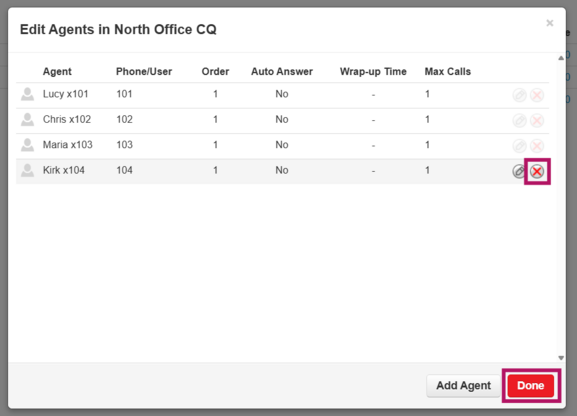
- Reopen the Edit Agents window for the call queue.
- Click the red "X" to the far right of the agent you want to remove.
- Click "Done" to save.

To Edit Call Queue Settings
- Click the name of the call queue (blue link), or the “Edit Queue” icon (far right).
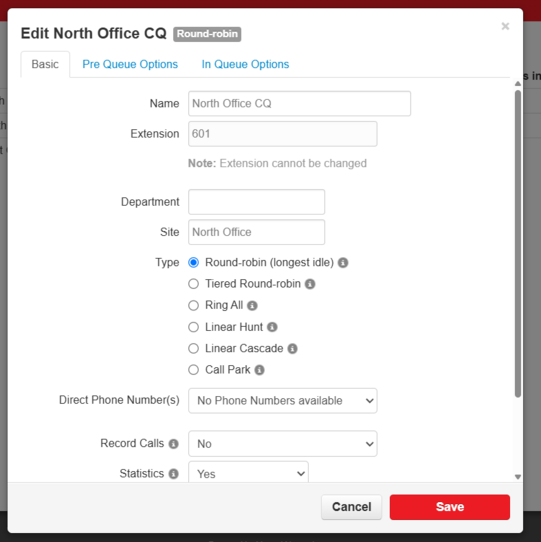
- In this window, you can:
- Change the call queue type
- Define what happens when a call is unanswered
- Adjust other call queue behaviors

Call Queue Types Explained
🔹 Round-Robin (Longest Idle)
- Routes callers to the available agent who’s been idle the longest
- ✅ No changes needed in the queue settings, this is an automated function.

🔹 Tiered Round-Robin
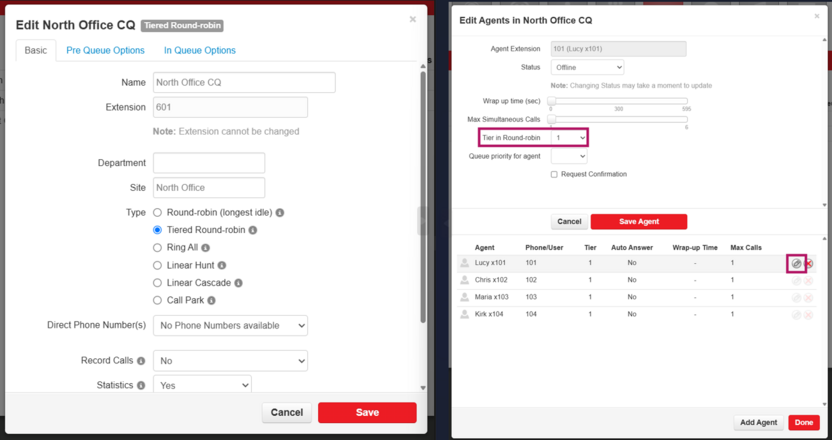
- Routes callers to available agents using escalating tiers
- 🛠️ Tiers can be adjusted by editing the agents in the call queue. Click on Edit Agents, click the pencil icon next to the desired agent, then update the "Tier in Round-robin" number, then click the red "Save Agent" button, then the red "Done" button.

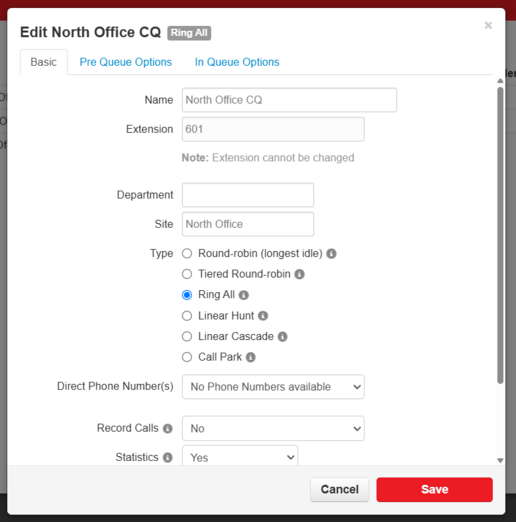
🔹 Ring All
- Routes callers to all available agents simultaneously
- ✅ No changes needed in the queue settings, this is an automated function.

🔹 Linear Hunt
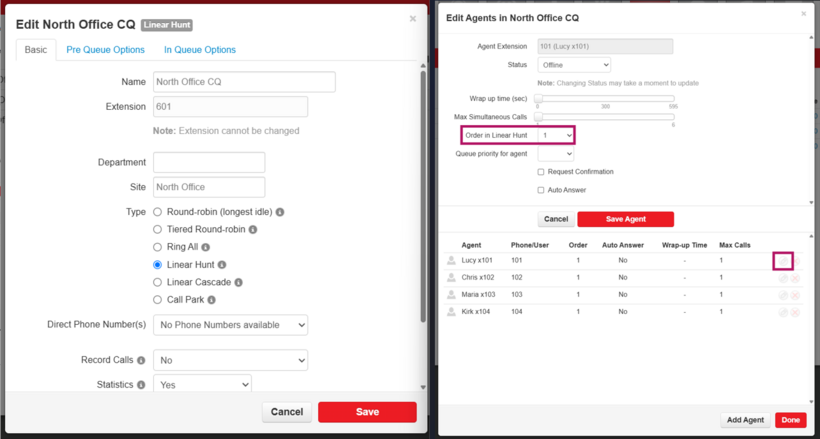
- Routes callers to agents in a predefined order
- 🛠️ You can adjust the “Order in Linear Hunt” when editing queue agents. Click on Edit Agents, click the pencil icon next to the desired agent, then update the "Order in Linear Hunt" number, then click the red "Save Agent" button, then the red "Done" button.

🔹 Linear Cascade
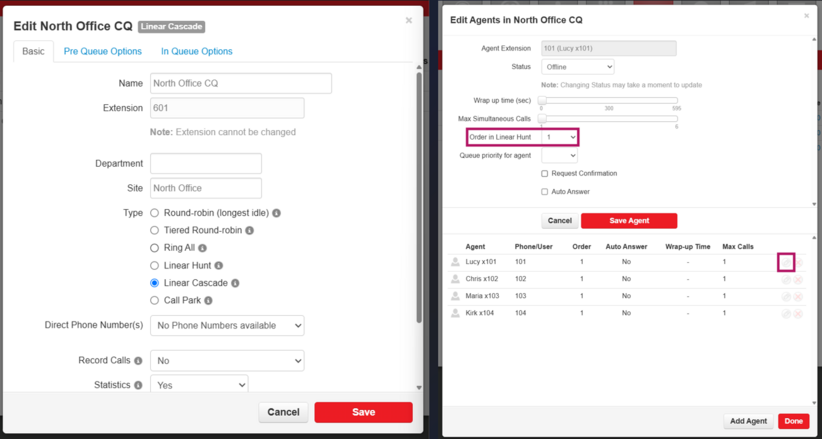
- Routes callers to groups of agents in a predefined sequence
- 🛠️ Adjust the “Order in Linear Hunt” for each group while editing agents. Click on Edit Agents, click the pencil icon next to the desired agent, then update the "Order in Linear Hunt" number, then click the red "Save Agent" button, then the red "Done" button.

🔹 Call Park
- Places the caller on hold until an agent retrieves them
- 🚫 You will not need to configure this, it's used for park buttons on phones only.
If you have any questions about this process, or if you need assistance, please reach out to our Support Team by dialing HELP(4357) on your desk phone, calling (972) 924-6488, or submitting a ticket.