How to update Caller ID Name: Difference between revisions
Jump to navigation
Jump to search
No edit summary |
m (updated guide images/info) |
||
| Line 2: | Line 2: | ||
== Nova Portal == | == Nova Portal == | ||
# Sign into the portal at nova.vestednetworks.com | |||
# Select '''Manage Organization''' from the view options. If this option is not available, an office manager may need to update your permissions.<blockquote>[[File:Updatecid.1.png|frameless|840x840px]]</blockquote> | |||
# Once in the '''Manage Organization''' view, click the '''Users''' tab at the top of the screen.<blockquote>[[File:Updatecid.2.png|frameless|835x835px]]</blockquote> | |||
# To quickly see current caller ID settings for all users, click the '''Columns''' drop-down on the right-hand side and enable '''Caller ID'''.<blockquote>[[File:Updatecid.3.png|frameless|839x839px]]</blockquote> | |||
# Locate the user whose caller ID you want to update and click their name (shown in blue).<blockquote>[[File:Updatecid.4.png|frameless|837x837px]]</blockquote> | |||
# Scroll to the bottom of the user’s profile until you see '''Caller ID Information'''.<blockquote>[[File:Updatecid.5.png|frameless|840x840px]]</blockquote> | |||
# Use the drop-down menu to select the correct caller ID number.<blockquote>[[File:Updatecid.6.png|frameless|844x844px]]</blockquote> | |||
# Scroll to the bottom of the page and click '''Save''' to complete the update, and you're done! | |||
If you have any questions about this process, or if you need assistance, please reach out to our Support Team by dialing HELP(4357) on your desk phone, calling (972) 924-6488, or submitting a ticket | If you have any questions about this process, or if you need assistance, please reach out to our Support Team by dialing HELP(4357) on your desk phone, calling (972) 924-6488, or submitting a ticket | ||
Latest revision as of 12:31, 19 January 2026
This page is part of the NOVA Manager Portal section.
Nova Portal
- Sign into the portal at nova.vestednetworks.com
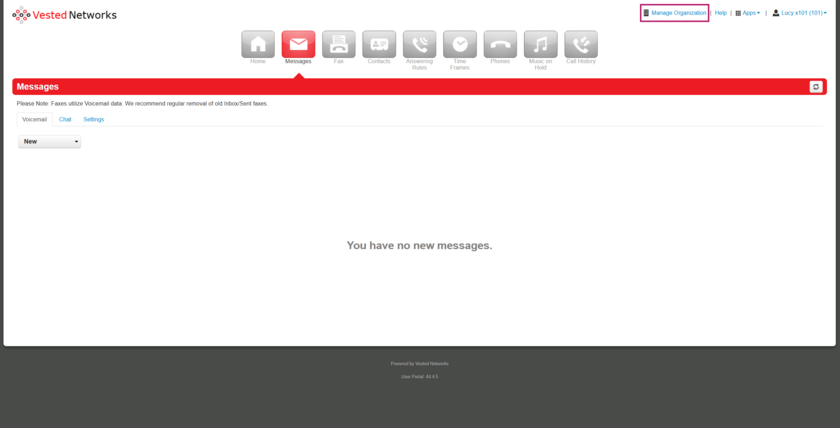
- Select Manage Organization from the view options. If this option is not available, an office manager may need to update your permissions.
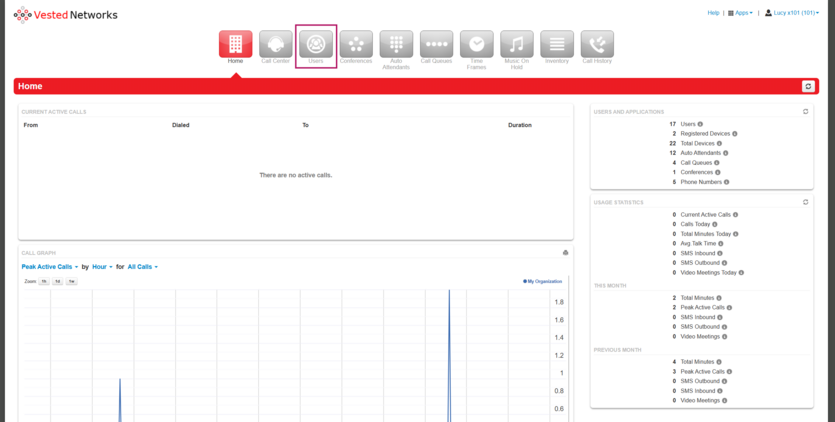
- Once in the Manage Organization view, click the Users tab at the top of the screen.
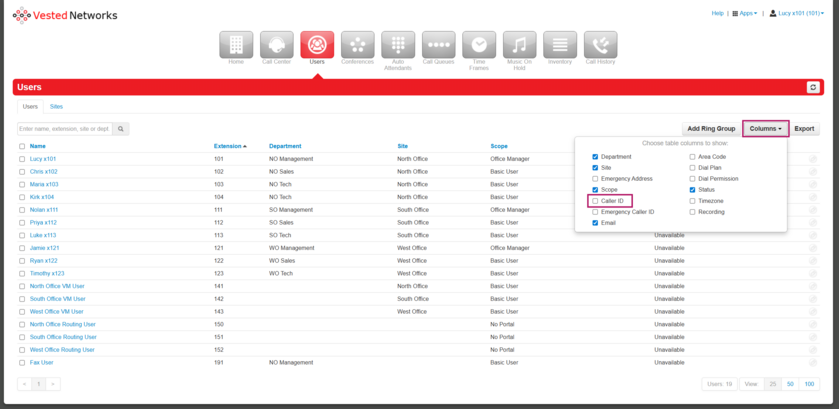
- To quickly see current caller ID settings for all users, click the Columns drop-down on the right-hand side and enable Caller ID.
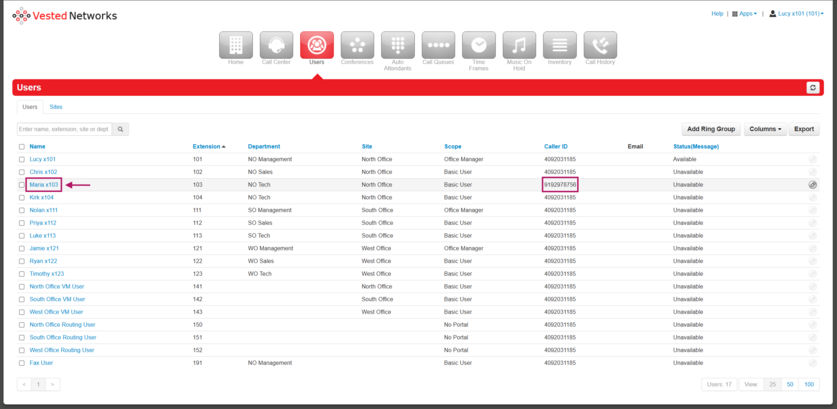
- Locate the user whose caller ID you want to update and click their name (shown in blue).
- Scroll to the bottom of the user’s profile until you see Caller ID Information.
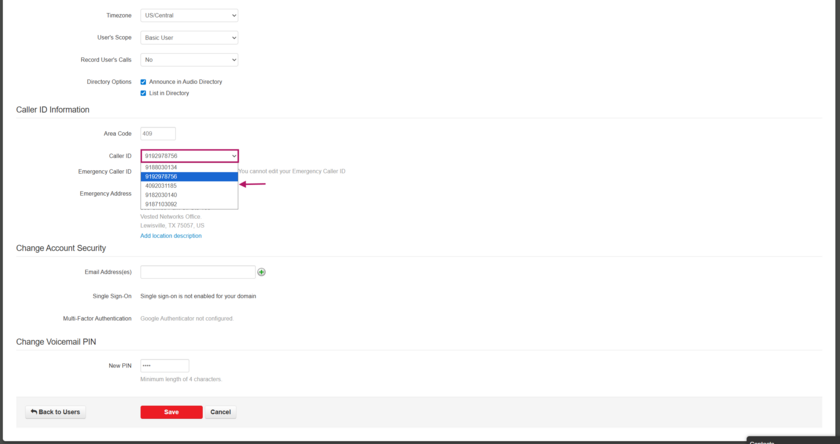
- Use the drop-down menu to select the correct caller ID number.
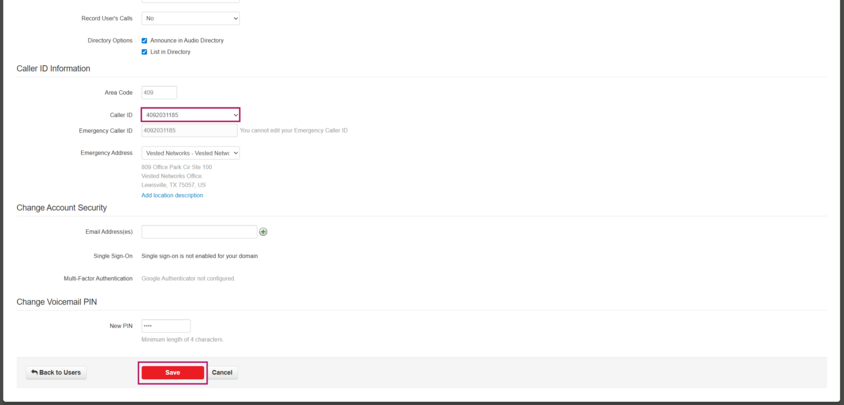
- Scroll to the bottom of the page and click Save to complete the update, and you're done!


If you have any questions about this process, or if you need assistance, please reach out to our Support Team by dialing HELP(4357) on your desk phone, calling (972) 924-6488, or submitting a ticket