Setting a Voicemail Greeting on the Vested Soft Desktop App
Jump to navigation
Jump to search
Log In to the Desktop App
If you're having trouble logging in, please see our article here.
Record a New Voicemail Greeting
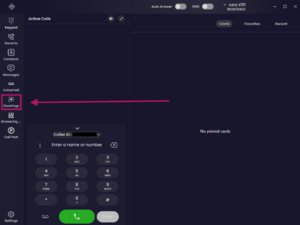
- Tap the Greetings tab on the left navigation bar.
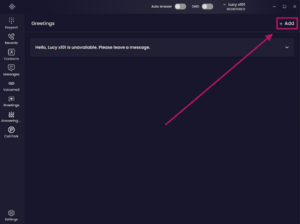
- Tap the + icon in the upper-right corner to create a new voicemail greeting.
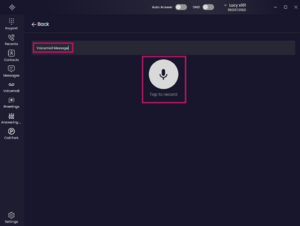
- Click the Greeting Name field and enter a name for your greeting.
- Click the Microphone icon to begin recording.
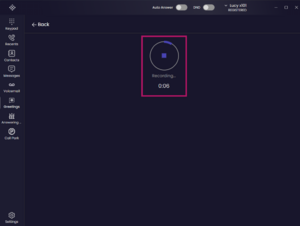
- When you have finished recording, click the Stop icon.
- Click the Play icon to review your recording.
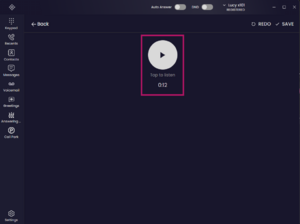
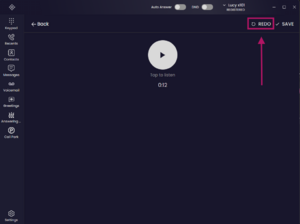
- If you need to re-record the message, click the Redo button in the top-right corner of the screen.
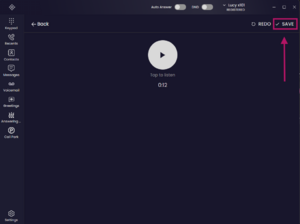
- Once you're satisfied with the recording, click the Save button in the top-right corner of the screen.


Change Your Active Voicemail Greeting
- In the Greetings menu, tap the drop-down arrow to the right of the greeting you want to use.
- Click the Select button.
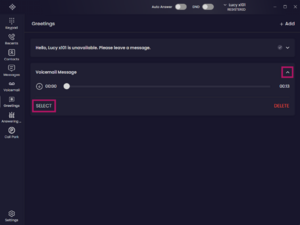
- A white checkmark to the right of the greeting indicates that it is currently active.
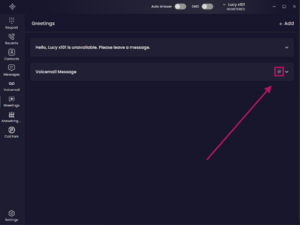


Delete a Voicemail Greeting
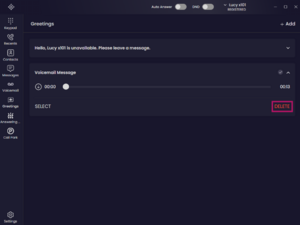
- In the Greetings menu, tap the drop-down arrow to the right of the greeting you want to delete.
- Click the Delete button.

If you have any questions about this process, or if you need assistance, please reach out to our Support Team by dialing HELP(4357) on your desk phone, calling (972) 924-6488, or emailing help@vestednetworks.com.