How to Park and Retrieve Calls in the Vested Soft Mobile App
Jump to navigation
Jump to search
Log In to the Mobile App
If you're having trouble logging in, please see our article here.
What Is Call Park?
Call Park allows you to place an active call into a shared parking slot so another user can retrieve and continue the conversation from their own desktop app or phone. This is useful when transferring calls between team members or when you need someone else to answer the call.
How to Park an Active Call
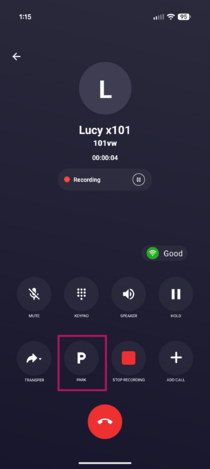
- While on an active call, click the P (Park) icon at the bottom of the screen.
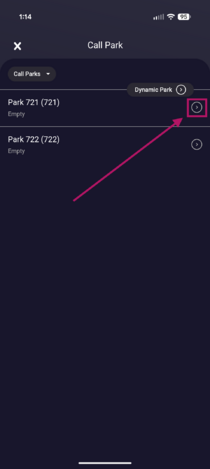
- Choose an empty parking slot.
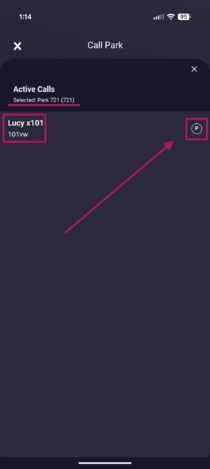
- Click the P (Park) icon next to the caller's name or phone number to park your active call.
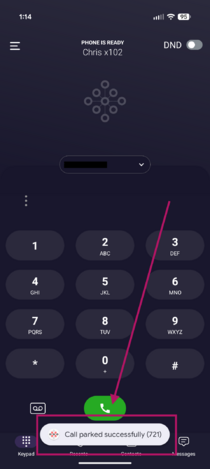
- You'll receive a confirmation message that says Call parked successfully (721)


You can also view all parked calls at any time by selecting the Parked tab from the left-hand menu.
How to Retrieve a Parked Call
- Tap the Menu icon (☰) in the upper-left corner of the screen
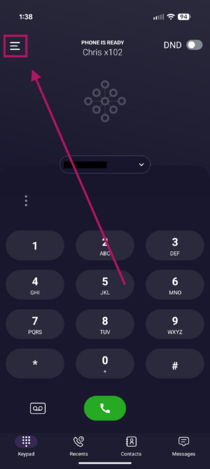
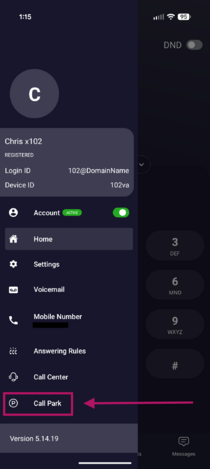
- Click on Call Park.
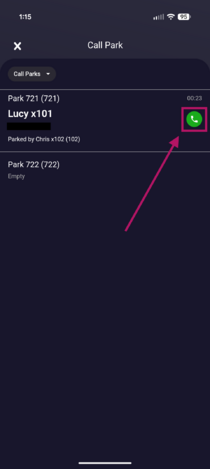
- Click the green Phone icon to pick up the parked call.
- You'll receive a message that says Parked call retrieved.
- After retrieving the parked call, it will appear as an incoming call.
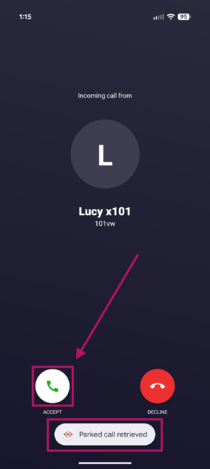
- Once answered, you'll be connected to the parked caller just like any other incoming call.


If you have any questions about this process, or if you need assistance, please reach out to our Support Team by dialing HELP(4357) on your desk phone, calling (972) 924-6488, or emailing help@vestednetworks.com.