Transferring and Merging Calls in the Vested Soft Mobile App
Log In to the Mobile App
If you're having trouble logging in, please see our article here.
Merging Call
Use Merge when you want to combine separate calls into a conference call.
- While you're on a call with the first participant, click Add Call (the + icon) in the bottom-right corner of the screen.
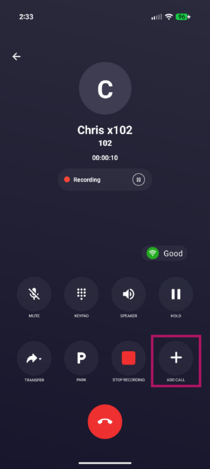
- Your current call will automatically be placed on hold.
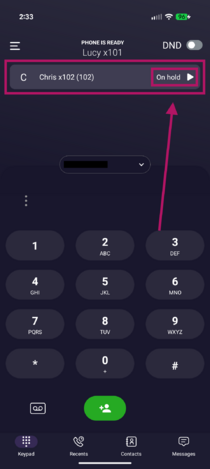
- Enter the phone number or extension of the person you'd like to add, then click the green Add Call button at the bottom of the screen.
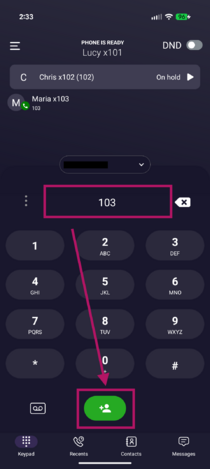
- After the second participant answers, click Merge in the bottom-right corner of the screen to combine both calls.
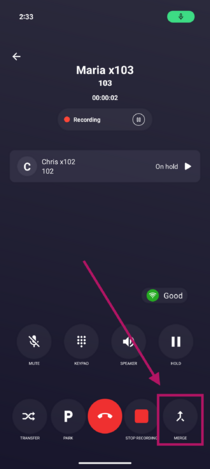
- Once merged, all participants will be connected in a conference call.
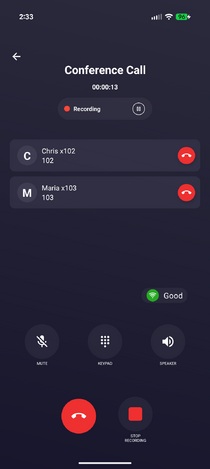


Ending a Conference Call
You have two options for ending a conference call:
- Disconnect an individual participant: Click the red Hang Up icon next to that participant's name.
- End the conference call for everyone: Click the red End Call button at the bottom of the screen.
How to Blind Transfer a Call
A blind transfer (also called a cold transfer) sends the caller directly to another phone number or extension without speaking to the recipient first. Once the transfer is complete, you are disconnected from the call.
- While you're on a call, click the Transfer button in the bottom-left corner of the screen.
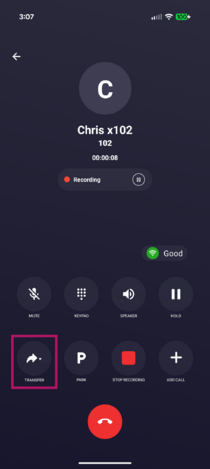
- Select Blind Transfer.
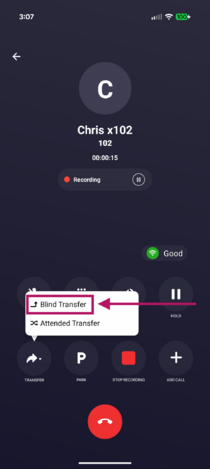
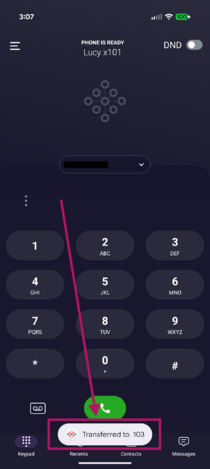
- The caller will automatically be placed on hold. Enter the phone number or extension you want to transfer the call to, then click the green Transfer button (arrow icon) at the bottom of the screen.
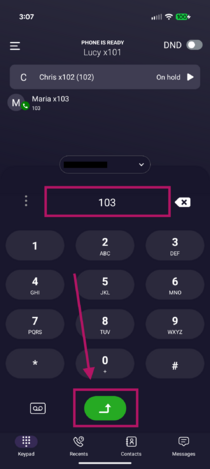
- A confirmation message will appear, such as "Transferred to 103" (or the phone number/extension you entered), indicating that the transfer was successful.


How to Complete an Attended Transfer
An attended transfer (also called a warm transfer) allows you to speak with the recipient before transferring the original caller to them.
- While you're on a call, click the Transfer button in the bottom-left corner of the screen.
- Select Attended Transfer.
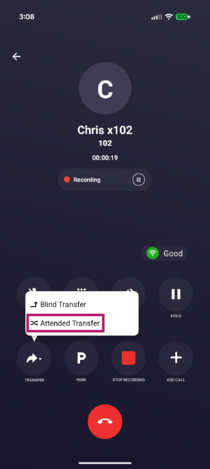
- The caller will automatically be placed on hold. Enter the phone number or extension you want to transfer the call to, then click the green Call button (arrows icon) at the bottom of the screen.
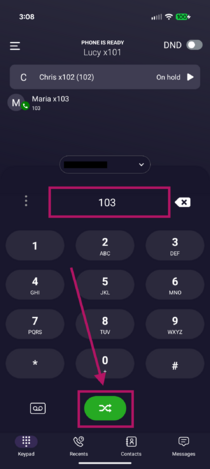
- Once the second party answers, you can speak with them before completing the transfer. When you're ready to transfer the caller, click the Transfer button in the bottom-left corner of the screen.
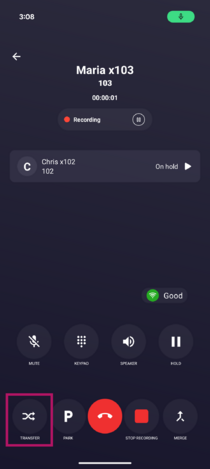
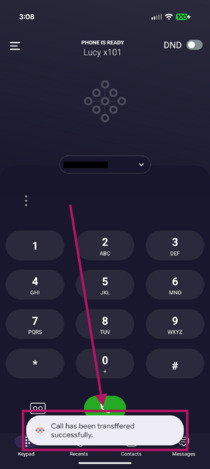
- A confirmation message will appear stating, "Call has been transferred successfully.", indicating that the transfer is complete.


If you have any questions about this process, or if you need assistance, please reach out to our Support Team by dialing HELP(4357) on your desk phone, calling (972) 924-6488, or emailing help@vestednetworks.com.