Calling Features and Options on the Vested Soft Mobile App
Log In to the Mobile App
If you're having trouble logging in, please see our article here.
Placing an Outbound Call
To place a call, enter the destination phone number or extension into the keypad field, then tap the green Call button at the bottom of the screen.

Choosing How to Place Your Call
When placing a call, you may be prompted to choose one of the following options:
- Call with This Phone – Places the call using the mobile app's SIP calling feature.
- Call with Mobile Phone – The app first calls your mobile phone. After you answer, it automatically places the outbound call to the destination number you entered.
- Choose Before Each Call – Displays these options every time you place a call.

If you choose Call with Mobile Phone, your recipient will not see your personal mobile phone number as the caller ID. Instead, your business caller ID will be displayed. This option can be useful if you're experiencing poor data or Wi-Fi connectivity. Otherwise, placing calls directly through the app is recommended for most situations.
If you no longer want to be prompted each time you place a call, select Don't Ask Again before choosing your preferred calling method.
You can also select your preferred calling method before placing a call by tapping the three-dot menu to the left of the keypad field.

Setting Up Your Mobile Number
To use the Call with Mobile Phone option, you must first add your mobile phone number to the app.
If a mobile number has not been configured, you'll receive a No Valid Phone Number message when attempting to use this calling method.

To add your mobile phone number:
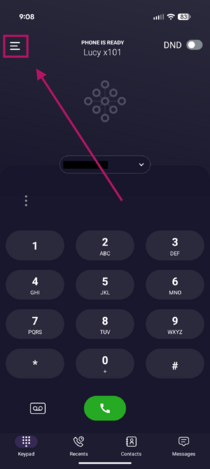
- Tap the Menu icon (☰) in the upper-left corner of the screen
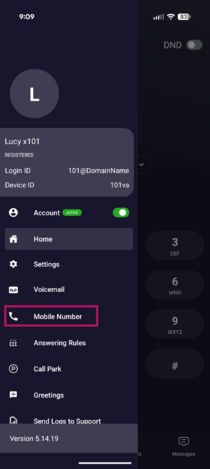
- Tap Mobile Number.
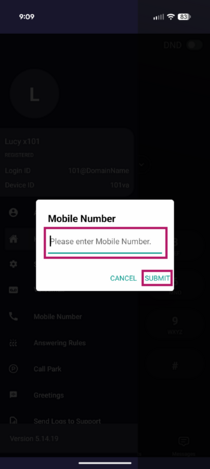
- Enter your mobile phone number.
- Tap Submit to save your changes.


If you have any questions about this process, or if you need assistance, please reach out to our Support Team by dialing HELP(4357) on your desk phone, calling (972) 924-6488, or emailing help@vestednetworks.com.