Transferring and Merging Calls in the Vested Soft Desktop App
Merging Calls
Use Merge when you want to combine separate calls into a conference call.
- While on a call with your first caller, add another call by entering the phone number or extension.
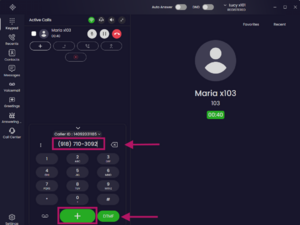
- Click the green
Add Call (+)icon. It will automatically place the original call on hold.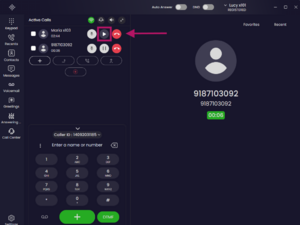
- Once both calls are connected, select both callers by checking the box to the left of each name.
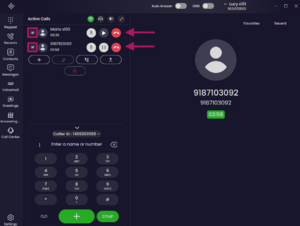
- Click the
Mergeicon (hovering over it will display Merge).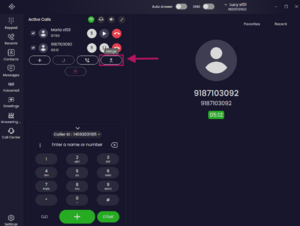
- After merging, you will be in a Conference Call with both users. Click the dropdown next to Conference Call to view all participants.
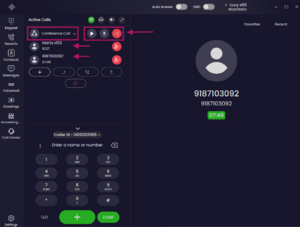


Confirm You’re Active in the Call
You can confirm your call status by reviewing the Mute and Hold icons.
Mute Icon
- White icon means you are
Unmuted(Disabled) and can speak to participants. - Gray icon means you are
Muted(Enabled) and participants cannot hear you.
Hold Icon
- White icon means the call is Not on Hold (Disabled). The icon displays
Pause, indicating the call is active. - Gray icon means the call is On Hold (Enabled). The icon displays
Play, allowing you to click it to take the caller off hold.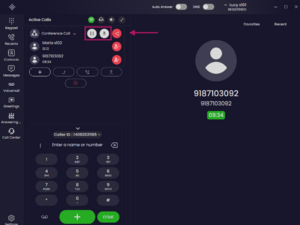

Ending a Call
To disconnect participants:
- Click the dropdown next to Conference Call to view all participants.
- Click the red
Remove Participanticon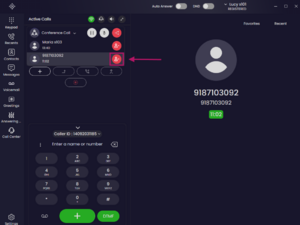
- Click the
Hang Upbutton to the right of each participant.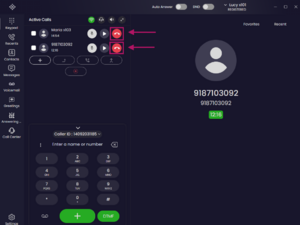


Transferring a Call
To transfer a call:
- Select the person you’d like to transfer the call to by checking the box to the left of their name.
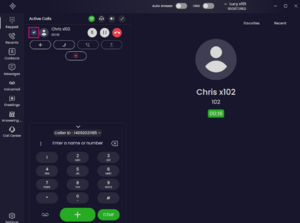
- Click the
Blind Transfericon (upward-pointing arrow, hovering over it will display Blind Transfer).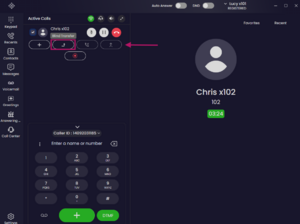
- Once selected, the green call button at the bottom of the screen will change to
Transfer Callicon. It will also automatically place the original caller on hold.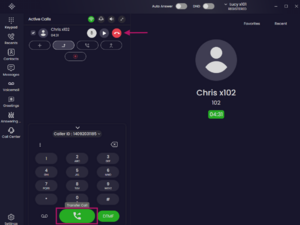
- Enter the phone number or extension.
- Click the green
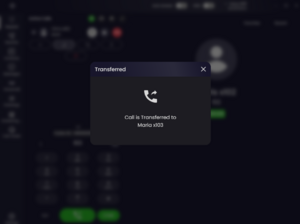
Transfer Callbutton to complete the transfer. - Once completed, the call will be transferred and you will be disconnected.


If you have any questions about this process, or if you need assistance, please reach out to our Support Team by dialing HELP(4357) on your desk phone, calling (972) 924-6488, or emailing help@vestednetworks.com.