Managing Contacts in the Vested Soft Mobile App
Log In to the Mobile App
If you're having trouble logging in, please see our article here.
Filter Your Contacts List
- Open the mobile app and tap the Contacts tab in the bottom navigation bar.
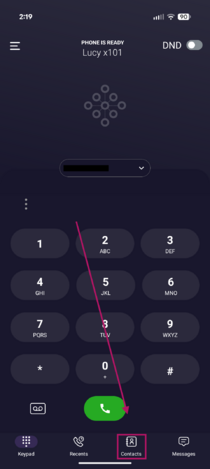
- Tap the Filter drop-down menu at the top of the screen. By default, it is set to All.
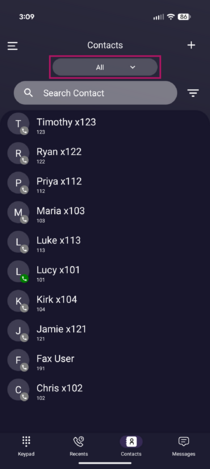
- Select one of the following categories:
- All – Displays every contact from all available sources.
- Favorites – Displays contacts you've marked as favorites.
- Enterprise – Displays contacts shared across your organization.
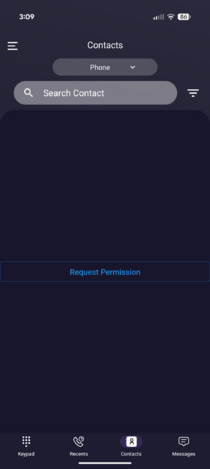
- Phone – Displays contacts stored on your device. Please Note: If you haven't granted the app permission to access your contacts, you'll be prompted to do so when you select this filter. Tap Request Permission and follow the prompts on your device to allow access.
- Private – Displays contacts you've created yourself.
- Shared – Displays contacts that have been shared with you.
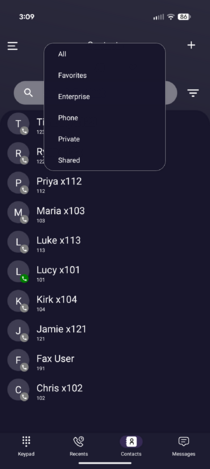
- The Contacts list will automatically update to display only the contacts in the selected category.


Add a New Contact
- From the Contacts screen, tap the + icon in the upper-right corner.
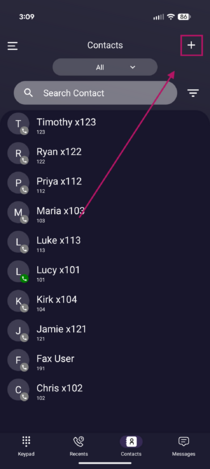
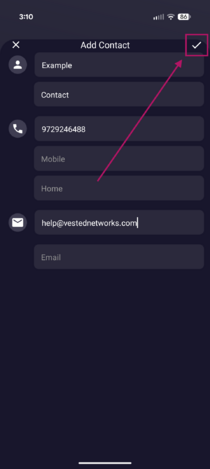
- Enter the contact's information as needed:
- First Name
- Last Name
- Work, Mobile, and/or Home phone number
- Tap the Checkmark icon in the upper-right corner to save the contact.
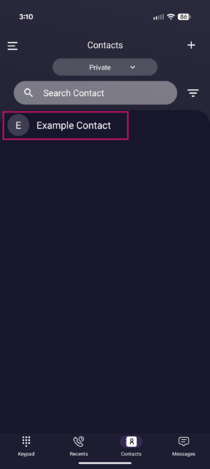
- An "Adding contact..." message will briefly appear, and the new contact will then be added to your Contacts list.


View a Contact
- From the Contacts screen, tap a contact's name or profile to open their details.
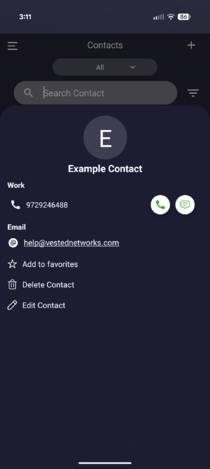
- From the contact details screen, you can:
- Tap tab the phone icon to place a call.
- Tap tab the message icon to send a message.
- Tap the contact's email address to open your device's default email app and compose a new email.
- Add or remove the contact from your Favorites.
- Edit the contact's information.
- Delete the contact if it is no longer needed.


Notes
- Only enter the information that's relevant for the contact. At a minimum, a name is recommended.
- Newly created contacts will appear under both the Private and All contact filters.
- If a category displays a message such as "No Favorite Contact Found," it simply means there are currently no contacts assigned to that category.
If you have any questions about this process, or if you need assistance, please reach out to our Support Team by dialing HELP(4357) on your desk phone, calling (972) 924-6488, or emailing help@vestednetworks.com.