How to Setup the Zoho CRM Integrator: Difference between revisions
(Created page with "<blockquote>Administrator Access Required: To set up this integration, you will need administrator access to your Zoho CRM account and an Office Manager Scope with the Nova Portal to setup and access recordings.</blockquote>Setup Steps: # Login to your Nova Portal # Go to the "Integration" Tab and Select on the "Enable" Button within the Zoho CRM Box Please Note: This will launch into a new window # Login to Zoho CRM # Accept the Connection of the Integrator # Integrat...") |
No edit summary |
||
| Line 1: | Line 1: | ||
'''Administrator Access Required:''' | |||
To set up this integration, you will need administrator access to your Zoho CRM account and an Office Manager Scope with the Nova Portal to setup and access recordings. | To set up this integration, you will need administrator access to your Zoho CRM account and an Office Manager Scope with the Nova Portal to setup and access recordings. | ||
'''Setup Steps:''' | |||
# Login to your Nova Portal | # Login to your Nova Portal | ||
# Go to the "Integration" Tab and Select on the "Enable" Button within the Zoho CRM Box Please Note: This will launch into a new window | # Go to the "Integration" Tab and Select on the "Enable" Button within the Zoho CRM Box (Please Note: ''This will launch into a new window'')<blockquote>[[File:ImageZohoCRM.png|frameless|517x517px]]</blockquote> | ||
# Login to Zoho CRM | # Login to Zoho CRM | ||
# Accept the Connection of the Integrator | # Accept the Connection of the Integrator | ||
# Integration Successfully Linked | # Integration Successfully Linked | ||
## Screen Prompt: | ## Screen Prompt: <code>Integration Successfully Enabled, you can now close this window.</code> | ||
## Icon Prompt: | ## Icon Prompt: <code>Zoho CRM integrated successfully</code> | ||
## Integrator Enabled Successfully: | ## Integrator Enabled Successfully: Zoho CRM is now showing "Enabled" in the Nova Portal under the "Integrations" tab. | ||
# Adding Users to the Integrator | # Adding Users to the Integrator | ||
## Hit the "Pencil" Icon Located Next to the "Enable Button" on Zoho CRM | ## Hit the "Pencil" Icon Located Next to the "Enable Button" on Zoho CRM | ||
## Enable Users for Calls, SMS, and Meetings Data and Accessing Tokens within Advanced (This selection depicts which data the integrator records and sends over to the CRM) | ## Enable Users for Calls, SMS, and Meetings Data and Accessing Tokens within Advanced (This selection depicts which data the integrator records and sends over to the CRM) | ||
## In the "Advanced" is where the Tokens can be located (Please note: Any edits to this can affect the outcome of the task within Zoho CRM) | ## In the "Advanced" is where the Tokens can be located (Please note: ''Any edits to this can affect the outcome of the task within Zoho CRM'') | ||
##* Contact: <code><nowiki>[[phone_number]]</nowiki></code> | ##* Contact: <code><nowiki>[[phone_number]]</nowiki></code> | ||
##* Employee: <code><nowiki>[[employee]]</nowiki></code> | ##* Employee: <code><nowiki>[[employee]]</nowiki></code> | ||
| Line 21: | Line 24: | ||
##* Call Event: <code><nowiki>[[call_event]]</nowiki></code> | ##* Call Event: <code><nowiki>[[call_event]]</nowiki></code> | ||
##* Recording: <code><nowiki>[[recording_url]]</nowiki> <nowiki>[[transcription]]</nowiki></code> | ##* Recording: <code><nowiki>[[recording_url]]</nowiki> <nowiki>[[transcription]]</nowiki></code> | ||
# Confirming the User's information in Zoho CRM<blockquote>'''User Identity Matching:''' <u>Email Address Identification</u>: The Nova Portal uses email addresses to identify users in Zoho CRM. <u>No Email Present</u>? If a Nova Agent/User doesn't have an email address, the Zoho CRM administrator can add the user's extension number in Zoho CRM. Follow the below steps to adding, adjusting or deleting Emails or Extension Numbers in Zoho CRM. </blockquote>Go to Zoho CRM (Please Note: You will be required to have Administrative Permissions to complete the following steps) | # Confirming the User's information in Zoho CRM<blockquote>'''User Identity Matching:''' <u>Email Address Identification</u>: The Nova Portal uses email addresses to identify users in Zoho CRM. <u>No Email Present</u>? If a Nova Agent/User doesn't have an email address, the Zoho CRM administrator can add the user's extension number in Zoho CRM. Follow the below steps to adding, adjusting or deleting Emails or Extension Numbers in Zoho CRM. </blockquote>Go to Zoho CRM (Please Note: ''You will be required to have Administrative Permissions to complete the following steps'') | ||
## Go to User Settings | ## Go to User Settings | ||
## Select Settings via the "Gear" Icon | ## Select Settings via the "Gear" Icon | ||
| Line 31: | Line 34: | ||
## Adding Extension and/or Email Address under the User | ## Adding Extension and/or Email Address under the User | ||
##* To add or adjust an email address, select the "Pencil" Icon to the right of the Email Field Box | ##* To add or adjust an email address, select the "Pencil" Icon to the right of the Email Field Box | ||
##* If no Email, Add the Extension Number to the Phone Field This allows for the integrator to link the identity of the Nova user to the CRM User. | ##* If no Email, Add the Extension Number to the Phone Field This allows for the integrator to link the identity of the Nova user to the CRM User. | ||
<code>If you have any questions about this process, or if you need assistance, please reach out to our Support Team by dialing HELP(4357) on your desk phone, calling (972) 924-6488, or submitting a ticket.</code> | |||
Revision as of 12:14, 15 June 2026
Administrator Access Required:
To set up this integration, you will need administrator access to your Zoho CRM account and an Office Manager Scope with the Nova Portal to setup and access recordings.
Setup Steps:
- Login to your Nova Portal
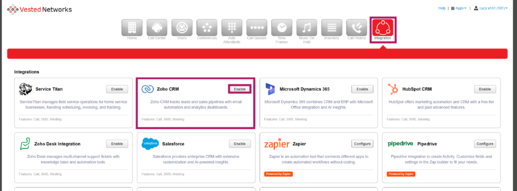
- Go to the "Integration" Tab and Select on the "Enable" Button within the Zoho CRM Box (Please Note: This will launch into a new window)
- Login to Zoho CRM
- Accept the Connection of the Integrator
- Integration Successfully Linked
- Screen Prompt:
Integration Successfully Enabled, you can now close this window. - Icon Prompt:
Zoho CRM integrated successfully - Integrator Enabled Successfully: Zoho CRM is now showing "Enabled" in the Nova Portal under the "Integrations" tab.
- Screen Prompt:
- Adding Users to the Integrator
- Hit the "Pencil" Icon Located Next to the "Enable Button" on Zoho CRM
- Enable Users for Calls, SMS, and Meetings Data and Accessing Tokens within Advanced (This selection depicts which data the integrator records and sends over to the CRM)
- In the "Advanced" is where the Tokens can be located (Please note: Any edits to this can affect the outcome of the task within Zoho CRM)
- Contact:
[[phone_number]] - Employee:
[[employee]] - Call Direction:
[[call_direction]] - Call Time:
[[call_start]] - Call Event:
[[call_event]] - Recording:
[[recording_url]] [[transcription]]
- Contact:
- Confirming the User's information in Zoho CRM
Go to Zoho CRM (Please Note: You will be required to have Administrative Permissions to complete the following steps)User Identity Matching: Email Address Identification: The Nova Portal uses email addresses to identify users in Zoho CRM. No Email Present? If a Nova Agent/User doesn't have an email address, the Zoho CRM administrator can add the user's extension number in Zoho CRM. Follow the below steps to adding, adjusting or deleting Emails or Extension Numbers in Zoho CRM.
- Go to User Settings
- Select Settings via the "Gear" Icon
- Select Users under General Settings Column
- Search the User's to confirm email or extension number is under the User
- Select the "Users" Tab
- Search the User using the Zoho CRM Search Function
- Hit the Pencil Icon to after Selecting on the user (Pencil located next to the Users Name)
- Adding Extension and/or Email Address under the User
- To add or adjust an email address, select the "Pencil" Icon to the right of the Email Field Box
- If no Email, Add the Extension Number to the Phone Field This allows for the integrator to link the identity of the Nova user to the CRM User.

If you have any questions about this process, or if you need assistance, please reach out to our Support Team by dialing HELP(4357) on your desk phone, calling (972) 924-6488, or submitting a ticket.