How to Setup the Microsoft Dynamics 365 Integrator: Difference between revisions
Jump to navigation
Jump to search
No edit summary |
No edit summary |
||
| Line 7: | Line 7: | ||
<u>Email Address Identification</u>: The Microsoft Dynamics Integrator uses email addresses to identify the correct agents/users in Microsoft Dynamics 365. | <u>Email Address Identification</u>: The Microsoft Dynamics Integrator uses email addresses to identify the correct agents/users in Microsoft Dynamics 365. | ||
<u>No Email Present?</u> If a Nova | <u>No Email Present?</u> If a Nova User doesn't have an email address, the Microsoft Dynamics 365 administrator can add the user's extension number in Microsoft Dynamics 365 to enable identification. | ||
'''Setup Steps:''' | |||
Setup Steps: | |||
# Login to the Nova Portal | # Login to the Nova Portal | ||
# Go to the "Integration" Tab and Select on the "Enable" Button on Microsoft Dynamics 365 | # Go to the "Integration" Tab and Select on the "Enable" Button on Microsoft Dynamics 365<blockquote>[[File:365Integrator.png|frameless|600x600px]]</blockquote> | ||
# Add Domain to URL Section (This will launch a window to Accept/Approve the Connection between the Integration and Microsoft Dynamics) | # Add Domain to URL Section (This will launch a window to Accept/Approve the Connection between the Integration and Microsoft Dynamics) | ||
# Integration Successfully Linked | # Integration Successfully Linked | ||
## Screen Prompt: "Integration Successfully Enabled, you can now close this window" Enable Button Turns Blue in the Nova Portal. | |||
# Adding Users to the Integrator | # Adding Users to the Integrator | ||
## Hit the "Pencil" Icon to the Right of Microsoft Dynamics 365 | ## Hit the "Pencil" Icon to the Right of Microsoft Dynamics 365 in the Nova Portal. | ||
## Enable Users for Calls, SMS, and Meetings Data | ## Enable Users for Calls, SMS, and Meetings Data | ||
## In the "Advanced" is where the Tokens can be located | ## In the "Advanced" is where the Tokens can be located (Please note: ''Any edits to this can affect the outcome of the task within Microsoft Dynamics 365'') | ||
##* Contact: <code><nowiki>[[phone_number]]</nowiki></code> | ##* Contact: <code><nowiki>[[phone_number]]</nowiki></code> | ||
##* Employee: <code><nowiki>[[employee]]</nowiki></code> | ##* Employee: <code><nowiki>[[employee]]</nowiki></code> | ||
Revision as of 11:52, 15 June 2026
Administrator Access Required:
To set up this integration, you will need administrator access to your Microsoft Dynamics 365 account and an Office Manager scope within the Nova Portal.
User Identity Matching:
Email Address Identification: The Microsoft Dynamics Integrator uses email addresses to identify the correct agents/users in Microsoft Dynamics 365.
No Email Present? If a Nova User doesn't have an email address, the Microsoft Dynamics 365 administrator can add the user's extension number in Microsoft Dynamics 365 to enable identification.
Setup Steps:
- Login to the Nova Portal
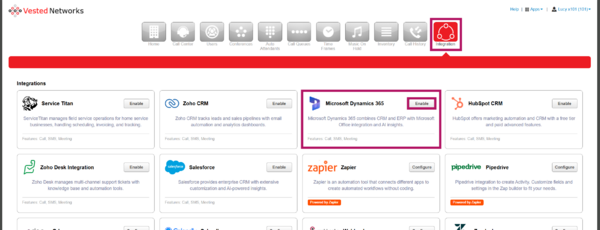
- Go to the "Integration" Tab and Select on the "Enable" Button on Microsoft Dynamics 365
- Add Domain to URL Section (This will launch a window to Accept/Approve the Connection between the Integration and Microsoft Dynamics)
- Integration Successfully Linked
- Screen Prompt: "Integration Successfully Enabled, you can now close this window" Enable Button Turns Blue in the Nova Portal.
- Adding Users to the Integrator
- Hit the "Pencil" Icon to the Right of Microsoft Dynamics 365 in the Nova Portal.
- Enable Users for Calls, SMS, and Meetings Data
- In the "Advanced" is where the Tokens can be located (Please note: Any edits to this can affect the outcome of the task within Microsoft Dynamics 365)
- Contact:
[[phone_number]] - Employee:
[[employee]] - Call Direction:
[[call_direction]] - Call Time:
[[call_start]] - Call Event:
[[call_event]] - Recording:
[[recording_url]] [[transcription]]
- Contact:
