NOVA MFA: Difference between revisions
Jump to navigation
Jump to search
No edit summary |
No edit summary |
||
| Line 10: | Line 10: | ||
# Click on the '''Profile''' option in the user menu (top right of the screen).<blockquote>[[File:UserPortalProfile.png|frameless]]</blockquote> | # Click on the '''Profile''' option in the user menu (top right of the screen).<blockquote>[[File:UserPortalProfile.png|frameless]]</blockquote> | ||
# Click '''Set Up Google Authenticator'''.<blockquote>[[File:SetupGoogleAuth.png|frameless|450x450px]]</blockquote> | # Click '''Set Up Google Authenticator'''.<blockquote>[[File:SetupGoogleAuth.png|frameless|450x450px]]</blockquote> | ||
# Scan the unique 2D barcode that is generated. ( | # Scan the unique 2D barcode that is generated for your user. (The QR code below will not work for your user). <blockquote>[[File:GoogleAuthQR.png|frameless|434x434px]]</blockquote> | ||
# Enter the passcode from your authenticator app into the '''Passcode''' field shown above. | # Enter the passcode from your authenticator app into the '''Passcode''' field shown above. | ||
# Enter your portal password in the '''Current Password''' field. | # Enter your portal password in the '''Current Password''' field. | ||
# Once this is done click on '''Save.''' | # Once this is done click on '''Save.''' | ||
Revision as of 14:01, 3 November 2025
This page is part of the Support Center guides for Advanced Users.
Multi-Factor Authentication (MFA) secures logins by requiring users to enter more than just their username and password. It adds an extra step in case a user's credentials have been compromised.
For MFA-enabled users, logging in will require them to either authenticate via email or the Google Authenticator app.
This article explains how to enable and disable MFA in the main portal.
- Log in to the User Portal.
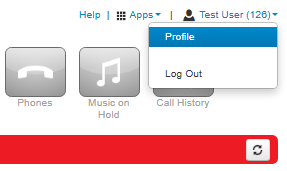
- Click on the Profile option in the user menu (top right of the screen).
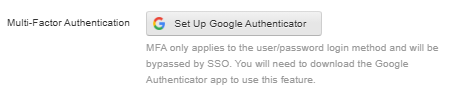
- Click Set Up Google Authenticator.
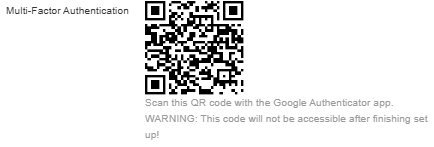
- Scan the unique 2D barcode that is generated for your user. (The QR code below will not work for your user).
- Enter the passcode from your authenticator app into the Passcode field shown above.
- Enter your portal password in the Current Password field.
- Once this is done click on Save.


