NOVA Web (Progressive Web App): Difference between revisions
Jump to navigation
Jump to search
No edit summary |
|||
| (3 intermediate revisions by 2 users not shown) | |||
| Line 1: | Line 1: | ||
== What is a PWA (Progressive Web App)? == | == What is a PWA (Progressive Web App)? == | ||
A progressive web app (PWA) is a website that looks and behaves as if it is a Desktop app. PWAs are built to take advantage of native mobile device features, without requiring the end user to visit an app store, make a purchase and download software locally. This means you are able to download the NOVA Web App to your PC, and it will behave like a stand alone application. You will be able to receive windows/MAC notifications of incoming/missed calls, voicemails, chat/SMS, etc. In addition, you can choose the NOVA Web Phone as a dialer when using built in click 2 call functions on your machine | A progressive web app (PWA) is a website that looks and behaves as if it is a Desktop app. PWAs are built to take advantage of native mobile device features, without requiring the end user to visit an app store, make a purchase and download software locally. This means you are able to download the NOVA Web App to your PC, and it will behave like a stand alone application. You will be able to receive windows/MAC notifications of incoming/missed calls, voicemails, chat/SMS, etc. In addition, you can choose the NOVA Web Phone as a dialer when using built in click 2 call functions on your machine. | ||
== Downloading the NOVA Web PWA == | == Downloading the NOVA Web Phone PWA For Desktop == | ||
# Log in to nova.vestednetworks.com | # Log in to '''nova.vestednetworks.com''' | ||
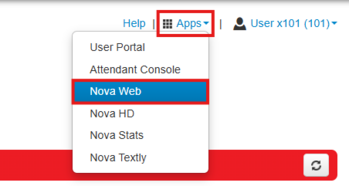
# Once logged in, click | # Once logged in, click the '''Apps''' drop-down menu in the top-right corner of the screen. Select '''"NOVA Web"''' from the list.<blockquote>[[File:Nova Web App.png|frameless|349x349px]]</blockquote> | ||
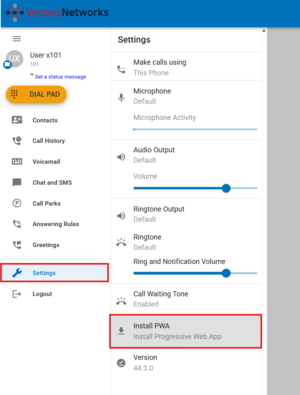
# | # In the NOVA Web application, look for a '''download icon''' (''typically a monitor with a down arrow'') in the top-right of your browser’s address bar.<blockquote>[[File:Install NOVA Web.png|frameless]] </blockquote>Alternatively, open the browser’s '''Settings menu''' (''wrench icon'') and select '''"Install PWA"'''<blockquote>[[File:Wiki.PWA.pt.5.png|frameless]]</blockquote> | ||
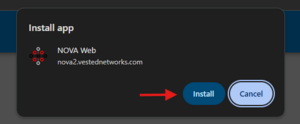
# Once | #A prompt will appear asking if you want to install the app. Click '''Install''' to download and set up the NOVA Web PWA.<blockquote>[[File:Install app NOVA Web.png|frameless]]</blockquote> | ||
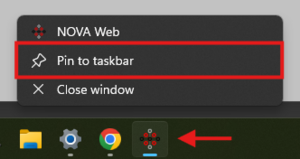
#Once installed, the NOVA Web app will open in its own window and appear on your taskbar. Right-click the icon and select '''“Pin to taskbar”''' for quick access in the future.<blockquote>[[File:NOVA Web Taskbar.png|frameless]]</blockquote> | |||
== Downloading the NOVA Web PWA For Android Mobile Device == | |||
# Launch the '''Chrome''' browser on your mobile device and navigate to: nova.vestednetworks.com then login with your credentials. | |||
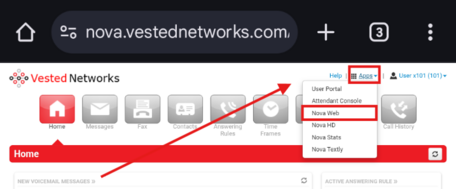
# Once logged in, tap the '''Apps''' drop-down menu in the top-right corner of the screen. Select '''“NOVA Web”''' from the list.<blockquote>[[File:NOVA Web app mobile menu.png|frameless|456x456px]]</blockquote> | |||
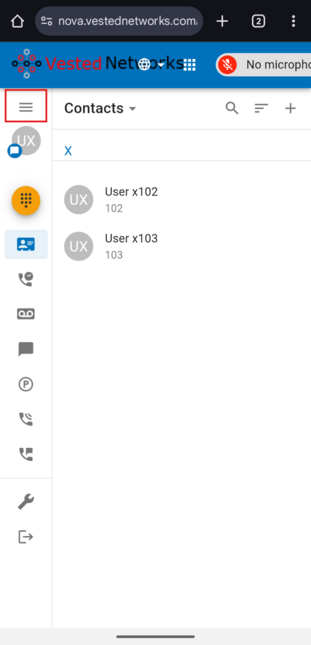
# After NOVA Web launches, tap the '''three horizontal lines''' (menu icon) in the top-left corner to open the sidebar.<blockquote>[[File:NOVA Web app mobile.png|frameless|646x646px]]</blockquote> | |||
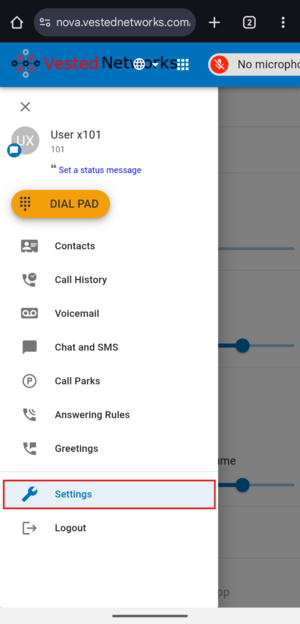
# In the sidebar, tap on '''“Settings.”''' <blockquote>[[File:NOVA Web app mobile settings.png|frameless|624x624px]]</blockquote> | |||
# Tap '''“Install PWA”''' when the option appears. Confirm the installation when prompted.<blockquote>[[File:NOVA Web app mobile Install PWA.png|frameless|617x617px]]</blockquote> | |||
# Once installed, the '''NOVA Web''' app icon will appear on your '''home screen''' or '''apps drawer'''. You can now open it like a native mobile app.<blockquote>[[File:NOVA Web PWA app icon.png|frameless|390x390px]]</blockquote> | |||
== Further Learning == | |||
Here is a link to a video that goes over the NOVA Web application features and functions | |||
[[Media:Vested Networks Basics - NOVA Web.mp4|Nova Web Tutorial]] | |||
__FORCETOC__ | |||
Latest revision as of 16:19, 18 August 2025
What is a PWA (Progressive Web App)?
A progressive web app (PWA) is a website that looks and behaves as if it is a Desktop app. PWAs are built to take advantage of native mobile device features, without requiring the end user to visit an app store, make a purchase and download software locally. This means you are able to download the NOVA Web App to your PC, and it will behave like a stand alone application. You will be able to receive windows/MAC notifications of incoming/missed calls, voicemails, chat/SMS, etc. In addition, you can choose the NOVA Web Phone as a dialer when using built in click 2 call functions on your machine.
Downloading the NOVA Web Phone PWA For Desktop
- Log in to nova.vestednetworks.com
- Once logged in, click the Apps drop-down menu in the top-right corner of the screen. Select "NOVA Web" from the list.
- In the NOVA Web application, look for a download icon (typically a monitor with a down arrow) in the top-right of your browser’s address bar.
Alternatively, open the browser’s Settings menu (wrench icon) and select "Install PWA"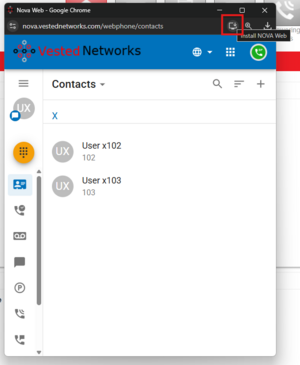
- A prompt will appear asking if you want to install the app. Click Install to download and set up the NOVA Web PWA.
- Once installed, the NOVA Web app will open in its own window and appear on your taskbar. Right-click the icon and select “Pin to taskbar” for quick access in the future.


Downloading the NOVA Web PWA For Android Mobile Device
- Launch the Chrome browser on your mobile device and navigate to: nova.vestednetworks.com then login with your credentials.
- Once logged in, tap the Apps drop-down menu in the top-right corner of the screen. Select “NOVA Web” from the list.
- After NOVA Web launches, tap the three horizontal lines (menu icon) in the top-left corner to open the sidebar.
- In the sidebar, tap on “Settings.”
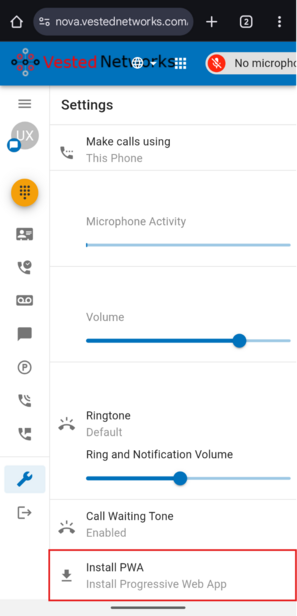
- Tap “Install PWA” when the option appears. Confirm the installation when prompted.
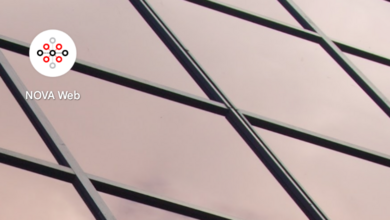
- Once installed, the NOVA Web app icon will appear on your home screen or apps drawer. You can now open it like a native mobile app.


Further Learning
Here is a link to a video that goes over the NOVA Web application features and functions