How to Setup the ServiceTitan CRM Integrator: Difference between revisions
No edit summary |
No edit summary |
||
| Line 1: | Line 1: | ||
'''Features:''' | |||
ServiceTitan manages field service operations for home service businesses, handling scheduling, invoicing, and tracking. | |||
Features include; Calling, SMS, and Meetings. | |||
'''Administrator Access Required:''' | '''Administrator Access Required:''' | ||
Latest revision as of 16:29, 1 July 2026
Features:
ServiceTitan manages field service operations for home service businesses, handling scheduling, invoicing, and tracking.
Features include; Calling, SMS, and Meetings.
Administrator Access Required:
You must be an Office Manager in the Nova Portal and an Administrator within the Service Titan CRM to configure this Integrator.
User Identity Matching:
Email Address Identification: The Nova Portal uses email addresses to identify users in Service Titan.
No Email Present? If a Nova Agent/User doesn't have an email address, the Service Titan administrator can add the user's extension number in Service Titan to enable identification.
Submit a Support Request:
To have this enabled, you will need to send a request to our support team with your Service Titan Tenant ID so we can process the request. You can email us at help@vestednetworks.com
Setup Steps:
- Login to Nova Portal
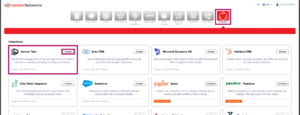
- Go to the "Integration" Tab and Select "Enable" Button within the Service Titan Box
- Follow Setup Instructions:
- Submit a support request providing your ServiceTitan account's Tenant ID to our support team. We will process the request and respond when access to the integration has been approved, along with detailed instructions for ServiceTitan configuration.
- Follow those instructions to complete setup within ServiceTitan, being sure to copy down the resulting Client ID and Client Secret values for the app.
- Click Connect below to complete setup within the Nova Portal, providing Tenant ID, Client ID, and Client Secret when prompted.
- Fill in Requested Information for Connection
- CRM Integrator Connected Confirmation
- Screen Prompt/Confirmation Message:
Integration Successfully Enabled, you can now close this window - Nova Integrator Status: Service Titan is now showing "Enabled" in the "Integrations" tab (button will change to blue).
- User/Agent Identity: The Nova Portal matches emails from the portal to Service Titan. If there is no email on the Nova Agent/User, the Service Titan admin can add the user's extension number in Service Titan to be matched.
- Screen Prompt/Confirmation Message:
- Selecting Users for specific data to be sent to the CRM (Call Data, SMS Data, and/or Meeting Data)
- In the "Advanced" is where the Tokens can be located (Please note: Any edits to this can affect the outcome of the task within Service Titan)
- Contact:
[[phone_number]] - Employee:
[[employee]] - Call Direction:
[[call_direction]] - Call Time:
[[call_start]] - Call Event:
[[call_event]] - Recording:
[[recording_url]] [[transcription]]
- Contact:
- In the "Advanced" is where the Tokens can be located (Please note: Any edits to this can affect the outcome of the task within Service Titan)

If you have any questions about this process, or if you need assistance, please reach out to our Support Team by dialing HELP(4357) on your desk phone, calling (972) 924-6488, or submitting a ticket.