How to Setup the Zapier Integrator: Difference between revisions
(Created page with "Looking for different ways of automating processes such as lead creation, call data logging, sms data logging, and call transcription data? Well, Zapier provides a low code/no code solution that provides simple ways of automating these processes in cases where your CRM doesn't have a direct integration within your providers portal. <blockquote>'''Administrator Access Required''': To set up this integration, you will need administrator access to your Zapier account and...") |
(Updated set up steps for Zapier.) |
||
| (2 intermediate revisions by the same user not shown) | |||
| Line 1: | Line 1: | ||
Looking for different ways of automating processes such as lead creation, call data logging, | Looking for different ways of automating processes such as lead creation, call data logging, SMS data logging, and call transcription data? Well, Zapier provides a low code/no code solution that provides simple ways of automating these processes in cases where your CRM doesn't have a direct integration within your providers portal. <blockquote>'''Administrator Access Required''': To set up this integration, you will need administrator access to your Zapier account and an Office Manager scope within the Nova Portal.</blockquote>'''Setup Steps:''' | ||
# Log in to the Nova Portal. | |||
# Navigate to the '''Integrations''' tab and click '''Configure''' in the '''Zapier''' section.<blockquote>[[File:ImageZapier.png|frameless|498x498px]]</blockquote> | |||
# Sign in to your Zapier account. | |||
# Once you're logged in, begin creating your Zap (workflow). When setting up the workflow, you'll need to connect your Nova Portal via. '''Calldacity'''. | |||
# When prompted, click '''Sign in to Calldacity'''.<blockquote>[[File:Wiki Integrator Zapier pt.1.png|frameless]]</blockquote> | |||
# In the authentication pop-up, click '''Connect'''.<blockquote>[[File:Wiki Integrator Zapier pt.2.png|frameless]]</blockquote> | |||
# Enter the following for your tenant name:<blockquote>[[File:Wiki Integrator Zapier pt.3.png|frameless]]</blockquote> | |||
#* '''Tenant:''' <code>Vested</code> | |||
# Sign in using the same username and password you use to access the Portal.<blockquote>[[File:Wiki Integrator Zapier pt.4.png|frameless]]</blockquote> | |||
# After your account has been connected, you can continue configuring your Zap as needed.<blockquote>[[File:Wiki Integrator Zapier pt.5.png|frameless]]</blockquote> | |||
For additional assistance with creating Zaps or to see whether your application is supported by Zapier, visit Zapier's documentation and supported apps [https://zapier.com/apps <u>here</u>]. | |||
<code>If you have any questions about this process, or if you need assistance, please reach out to our Support Team by dialing HELP(4357) on your desk phone, calling (972) 924-6488, or submitting a ticket.</code> | |||
Latest revision as of 14:10, 28 July 2026
Looking for different ways of automating processes such as lead creation, call data logging, SMS data logging, and call transcription data? Well, Zapier provides a low code/no code solution that provides simple ways of automating these processes in cases where your CRM doesn't have a direct integration within your providers portal.
Administrator Access Required: To set up this integration, you will need administrator access to your Zapier account and an Office Manager scope within the Nova Portal.
Setup Steps:
- Log in to the Nova Portal.
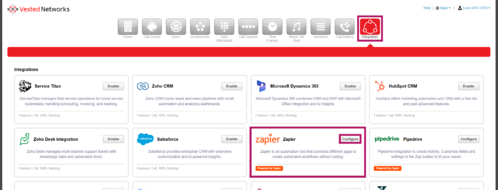
- Navigate to the Integrations tab and click Configure in the Zapier section.
- Sign in to your Zapier account.
- Once you're logged in, begin creating your Zap (workflow). When setting up the workflow, you'll need to connect your Nova Portal via. Calldacity.
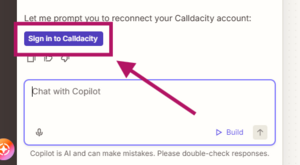
- When prompted, click Sign in to Calldacity.
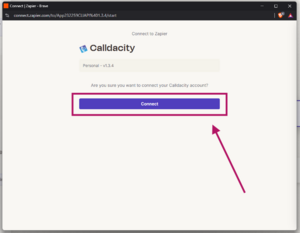
- In the authentication pop-up, click Connect.
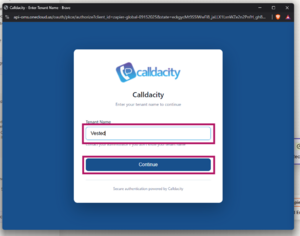
- Enter the following for your tenant name:
- Tenant:
Vested
- Tenant:
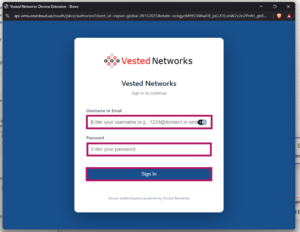
- Sign in using the same username and password you use to access the Portal.
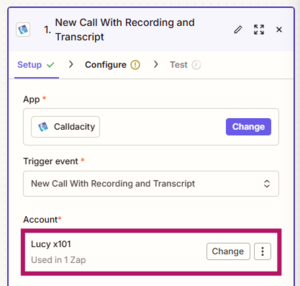
- After your account has been connected, you can continue configuring your Zap as needed.


For additional assistance with creating Zaps or to see whether your application is supported by Zapier, visit Zapier's documentation and supported apps here.
If you have any questions about this process, or if you need assistance, please reach out to our Support Team by dialing HELP(4357) on your desk phone, calling (972) 924-6488, or submitting a ticket.