How to Setup the HubSpot CRM Integrator: Difference between revisions
Jump to navigation
Jump to search
(Created page with "# Access the Nova Portal # Navigate to the "Integration" Tab # Enable HubSpot CRM Integration Select "Enable" next to HubSpot CRM. # Link Your Account ## Enter HubSpot Login Credentials ## Choose Account ## Allow for the connection by selecting "Connect App" # Integration Successfully Enabled ## Success confirmation ## Showing "Enabled" on domain # Enable Users and Access Tokens being sent via the Integrator ## Click the "Pencil" Icon ## Select the specific Data being l...") |
No edit summary |
||
| (4 intermediate revisions by the same user not shown) | |||
| Line 1: | Line 1: | ||
# Access the Nova Portal | # Access the [https://nova.vestednetworks.com/portal Nova Portal] | ||
# Navigate to the | # Navigate to the '''Integration''' Tab | ||
# Enable HubSpot CRM Integration Select "Enable" next to HubSpot CRM. | # Enable HubSpot CRM Integration Select "Enable" next to HubSpot CRM. <blockquote>[[File:HSCRM.png|frameless|683x683px]]</blockquote> | ||
# Link Your Account | # Link Your Account | ||
## Enter HubSpot Login Credentials | ## Enter HubSpot Login Credentials | ||
| Line 12: | Line 12: | ||
## Click the "Pencil" Icon | ## Click the "Pencil" Icon | ||
## Select the specific Data being logged to HubSpot per User (Call, SMS, or Meeting) | ## Select the specific Data being logged to HubSpot per User (Call, SMS, or Meeting) | ||
## Select "Advanced" to access Tokens being sent via the Integrator (Please note. Any edits to this can affect the outcome of the task within HubSpot)< | ## Select "Advanced" to access Tokens being sent via the Integrator (Please note. Any edits to this can affect the outcome of the task within HubSpot) | ||
# Adding Extension number to HubSpot User Please Note. - This process is critical for matching the | ##* Contact. <code><nowiki>[[phone_number]]</nowiki></code> | ||
##* Employee. <code><nowiki>[[employee]]</nowiki></code> | |||
##* Call Direction. <code><nowiki>[[call_direction]]</nowiki></code> | |||
##* Call Time. <code><nowiki>[[call_start]]</nowiki></code> | |||
##* Call Event. <code><nowiki>[[call_event]]</nowiki></code> | |||
##* Recording. <code><nowiki>[[recording_url]]</nowiki> <nowiki>[[transcription]]</nowiki></code> | |||
# Adding Extension number to HubSpot User Please Note. - This process is critical for matching the Nova agent to the HubSpot User if the agent does not have an Email Address - Once a User in HubSpot is created with a specific email address that address cannot be changed. | |||
## Select on the "Gear" Icon to go to Settings | ## Select on the "Gear" Icon to go to Settings | ||
## Once in Settings go to Users & Teams | ## Once in Settings go to Users & Teams | ||
Latest revision as of 13:33, 12 June 2026
- Access the Nova Portal
- Navigate to the Integration Tab
- Enable HubSpot CRM Integration Select "Enable" next to HubSpot CRM.
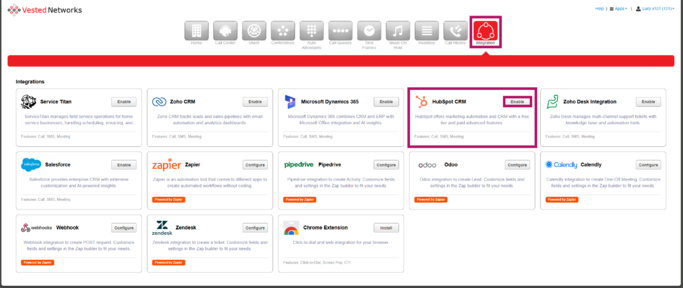
- Link Your Account
- Enter HubSpot Login Credentials
- Choose Account
- Allow for the connection by selecting "Connect App"
- Integration Successfully Enabled
- Success confirmation
- Showing "Enabled" on domain
- Enable Users and Access Tokens being sent via the Integrator
- Click the "Pencil" Icon
- Select the specific Data being logged to HubSpot per User (Call, SMS, or Meeting)
- Select "Advanced" to access Tokens being sent via the Integrator (Please note. Any edits to this can affect the outcome of the task within HubSpot)
- Contact.
[[phone_number]] - Employee.
[[employee]] - Call Direction.
[[call_direction]] - Call Time.
[[call_start]] - Call Event.
[[call_event]] - Recording.
[[recording_url]] [[transcription]]
- Contact.
- Adding Extension number to HubSpot User Please Note. - This process is critical for matching the Nova agent to the HubSpot User if the agent does not have an Email Address - Once a User in HubSpot is created with a specific email address that address cannot be changed.
- Select on the "Gear" Icon to go to Settings
- Once in Settings go to Users & Teams
- Use the Search function in Users & Teams to locate the specific users
- Select on the User's Name to access Account
- Select "Preferences" out of the Columns
- Add User's Extension Number into the Extension Box Please Note. HubSpot will require a phone number within the field next to extension, this can be the User's DID, Main Number, etc.
