How to Update the Name of a User/Extension: Difference between revisions
No edit summary |
m (Added a custom directory message) |
||
| (One intermediate revision by the same user not shown) | |||
| Line 6: | Line 6: | ||
Login to nova.vestednetworks.com | Login to nova.vestednetworks.com | ||
=== | === Confirm You're in "Organization" View === | ||
If you're an office manager, ensure you're in the '''Organization view''': | |||
# Click your name in the top-right corner. | |||
# Select '''My Account'''. | |||
# In the top-left corner, look for a blue link labeled '''Manage Organization'''. Click this before proceeding. | |||
'''Note:''' | |||
If you do not see "Manage Organization," your user role may be set to '''Basic User''', which does not allow you to manage organization settings. | |||
Contact your office administrator or management team, or call our Support Team by dialing HELP(4357) on your desk phone, calling (972) 924-6488, or submitting a ticket<blockquote>[[File:UU.1.png|frameless|891x891px]]</blockquote> | |||
==== Save ==== | |||
== Navigate to the User == | |||
Click on the '''Users''' tab at the top. | |||
# Click the '''Users''' tab at the top of the screen. | |||
# Select the user you want to update. | |||
<blockquote> | |||
[[File:UU.2.png|frameless|900x900px]]</blockquote> | |||
=== Update the User’s Profile === | |||
* Go to the '''Profile''' tab. | |||
* Update the '''First Name''' and '''Last Name''' fields as needed. | |||
<blockquote> | |||
[[File:UU.3.png|frameless|900x900px]]</blockquote> | |||
* Scroll down and update the '''Email Address''' if required. | |||
* Click the red '''Save''' button to apply your changes. | |||
<blockquote> | |||
[[File:UU.4.png|frameless|901x901px]]</blockquote> | |||
=== Clear Old Voicemails === | |||
# Go to the '''Voicemail''' tab. | |||
# Under the '''Inbox''' section, click '''Clear Messages''' to delete existing messages (if needed). | |||
<blockquote> | |||
[[File:UU.5.png|frameless|898x898px]]</blockquote> | |||
=== Update Voicemail Message === | |||
# Scroll down to the '''Greetings''' section. | |||
# Click the '''megaphone icon''' next to the current voicemail greeting to manage it.<blockquote>[[File:UU.6.png|frameless|491x491px]]</blockquote> | |||
# Click the '''red X''' to delete the old greeting. | |||
# Select '''Text-To-Speech''' to enter a new message (e.g., the new user's name).<blockquote>[[File:UU.7.png|frameless|490x490px]]</blockquote> | |||
# Click the red '''Save''' button, then click '''Done'''. | |||
# Finally, click the red '''Save''' button again to save all changes. | |||
=== Reset the Password (Optional but Recommended) === | |||
For security, it's a good idea to force a password reset when a new user is assigned to an existing profile. | |||
# Go to the '''Advanced''' tab. | |||
# Under '''Account Security''', click '''Force Password Reset'''. | |||
#* This clears the existing password and prompts the new user to set a new one upon login. | |||
<blockquote> | |||
[[File:UU.8.png|frameless|930x930px]]</blockquote> | |||
'''Important:''' | |||
The user's '''Login Name''' can be found on the '''Profile''' tab. This is the username they'll use to sign in. | |||
An '''email address must be assigned''' to the user's profile in order for password reset emails to work.<blockquote> | |||
[[File:UU.10.png|frameless|925x925px]]</blockquote> | |||
'''How the New User Resets Their Password''' | |||
# On the login screen, click '''Forgot Password'''.<blockquote>[[File:UU.11.png|frameless]]</blockquote> | |||
# Enter the '''Login Name''' when prompted.<blockquote>[[File:UU.12.png|frameless]]</blockquote> | |||
# A reset email will be sent to the email address associated with the profile.<blockquote>[[File:UU.13.png|frameless|522x522px]]</blockquote> | |||
# The user can follow the link to set a new password. | |||
If they receive a message saying "failed to update your credentials," it usually means the password confirmation did not match. They can simply repeat the '''Forgot Password''' process to try again. | |||
Please Note: If you have a custom directory, you will need to contact our support team so we can update this within our system. | |||
If you have any questions about this process, or if you need assistance, please reach out to our Support Team by dialing HELP(4357) on your desk phone, calling (972) 924-6488, or submitting a ticket | If you have any questions about this process, or if you need assistance, please reach out to our Support Team by dialing HELP(4357) on your desk phone, calling (972) 924-6488, or submitting a ticket | ||
Latest revision as of 14:40, 6 October 2025
This page is part of the NOVA Manager Portal section.
Every user on our system is customizable, which means you can change and moves names around whenever you want to.
Nova Portal
Login to nova.vestednetworks.com
Confirm You're in "Organization" View
If you're an office manager, ensure you're in the Organization view:
- Click your name in the top-right corner.
- Select My Account.
- In the top-left corner, look for a blue link labeled Manage Organization. Click this before proceeding.
Note:
If you do not see "Manage Organization," your user role may be set to Basic User, which does not allow you to manage organization settings.
Contact your office administrator or management team, or call our Support Team by dialing HELP(4357) on your desk phone, calling (972) 924-6488, or submitting a ticket

Click on the Users tab at the top.
- Click the Users tab at the top of the screen.
- Select the user you want to update.

Update the User’s Profile
- Go to the Profile tab.
- Update the First Name and Last Name fields as needed.

- Scroll down and update the Email Address if required.
- Click the red Save button to apply your changes.

Clear Old Voicemails
- Go to the Voicemail tab.
- Under the Inbox section, click Clear Messages to delete existing messages (if needed).

Update Voicemail Message
- Scroll down to the Greetings section.
- Click the megaphone icon next to the current voicemail greeting to manage it.
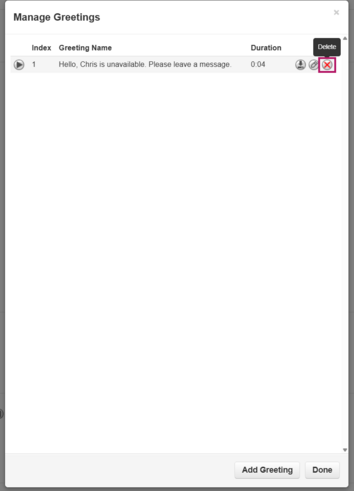
- Click the red X to delete the old greeting.
- Select Text-To-Speech to enter a new message (e.g., the new user's name).
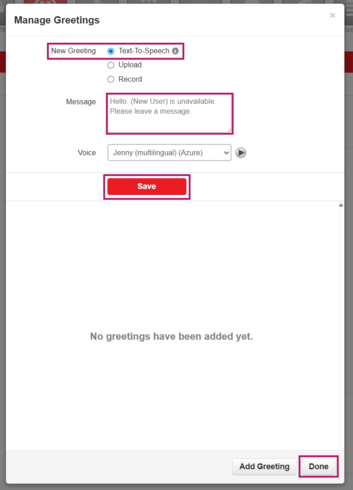
- Click the red Save button, then click Done.
- Finally, click the red Save button again to save all changes.


Reset the Password (Optional but Recommended)
For security, it's a good idea to force a password reset when a new user is assigned to an existing profile.
- Go to the Advanced tab.
- Under Account Security, click Force Password Reset.
- This clears the existing password and prompts the new user to set a new one upon login.

Important:
The user's Login Name can be found on the Profile tab. This is the username they'll use to sign in.
An email address must be assigned to the user's profile in order for password reset emails to work.

How the New User Resets Their Password
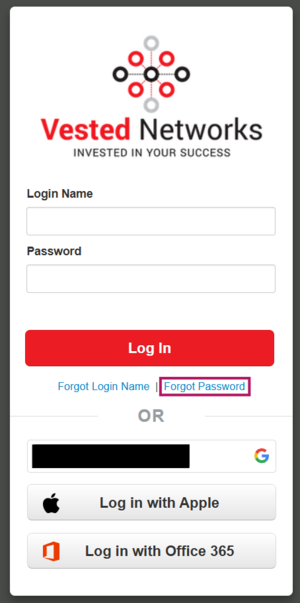
- On the login screen, click Forgot Password.
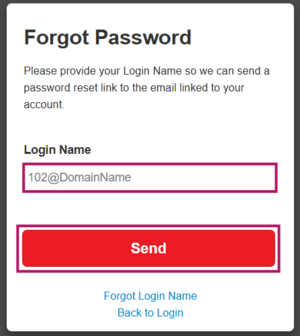
- Enter the Login Name when prompted.
- A reset email will be sent to the email address associated with the profile.

- The user can follow the link to set a new password.


If they receive a message saying "failed to update your credentials," it usually means the password confirmation did not match. They can simply repeat the Forgot Password process to try again.
Please Note: If you have a custom directory, you will need to contact our support team so we can update this within our system.
If you have any questions about this process, or if you need assistance, please reach out to our Support Team by dialing HELP(4357) on your desk phone, calling (972) 924-6488, or submitting a ticket