How to Check Voicemails (Vested Mobile): Difference between revisions
Jump to navigation
Jump to search
(Created page with " == In this article, you will see how to check your voicemails using Vested Mobile == # Download Vested Mobile from the Apple App Store or Google Play store, and login with your NOVA web portal credentials '''**If you do not know your credentials, please contact our support team 972-924-6488**''' # Below is a video on some of the functions of the voicemail inside of the mobile app You have the ability to play, forward, save, delete, and recover voicemails straight fro...") |
m (update) |
||
| (2 intermediate revisions by the same user not shown) | |||
| Line 1: | Line 1: | ||
== | == How to Check Your Voicemail Using the Mobile App == | ||
# Download | # '''Download the Mobile App''' If you haven’t already, download our mobile app from the '''App Store''' (iPhone) or '''Google Play Store''' (Android). <blockquote>[[File:Cvvn.1.png|frameless]]</blockquote> | ||
# | # '''Log into the Mobile App''' | ||
#* 🔐 If you don’t know your login: | |||
#** Tap '''"Forgot Login?"''' Enter your '''email''' and '''extension''' to receive your login name via email. | |||
#*🔑 If you forgot your password: | |||
#**Tap '''"Forgot Password?"''' Enter your '''login name''', and you’ll receive a "Notify" email to reset your password.<blockquote>[[File:Cvvn.4.png|frameless]]</blockquote><blockquote>[[File:Cvvn.5.png|frameless|300x300px]]</blockquote> | |||
# '''Access Your Voicemails''' Once you're logged in: | |||
#* Tap the '''Voicemail''' icon (looks like a cassette tape) at the bottom of the screen. <blockquote>[[File:Cvvn.2.png|frameless]]</blockquote> | |||
#* Any new voicemails will appear in this section. | |||
# '''Managing Your Voicemails''' For each voicemail, you can: | |||
#* ▶️ '''Play''' – Tap the play button to listen to the message. | |||
#* 📞 '''Call Back''' – Tap the phone icon to call the number that left the voicemail. | |||
#* ➡️ '''Forward''' – Tap the arrow icon to forward the voicemail. | |||
#* 💾 '''Save''' – Tap the save icon to move the voicemail to your “Saved” tab. | |||
#* ℹ️ '''More Info''' – Tap the info icon to view message details and more options. | |||
#* 🗑️ '''Delete''' – Tap the trash can icon to delete the voicemail.<blockquote>[[File:Cvvn.3.png|frameless]]</blockquote> | |||
If you have any questions about this process, or if you need assistance, please reach out to our Support Team by dialing HELP(4357) on your desk phone, calling (972) 924-6488, or submitting a ticket. | |||
Latest revision as of 11:24, 24 June 2025
How to Check Your Voicemail Using the Mobile App
- Download the Mobile App If you haven’t already, download our mobile app from the App Store (iPhone) or Google Play Store (Android).
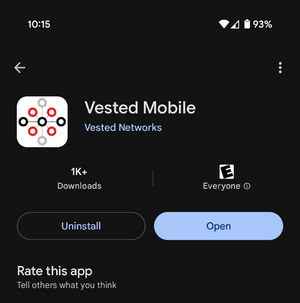
- Log into the Mobile App
- 🔐 If you don’t know your login:
- Tap "Forgot Login?" Enter your email and extension to receive your login name via email.
- 🔑 If you forgot your password:
- Tap "Forgot Password?" Enter your login name, and you’ll receive a "Notify" email to reset your password.
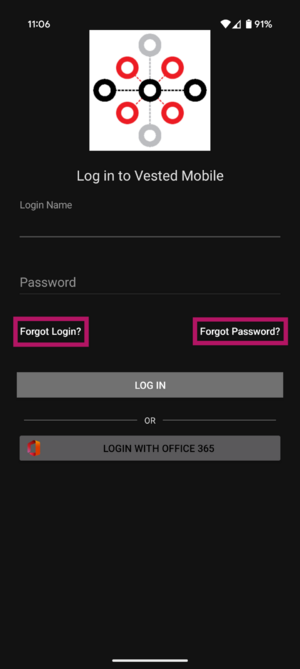
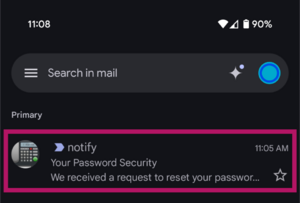
- Tap "Forgot Password?" Enter your login name, and you’ll receive a "Notify" email to reset your password.
- 🔐 If you don’t know your login:
- Access Your Voicemails Once you're logged in:
- Tap the Voicemail icon (looks like a cassette tape) at the bottom of the screen.
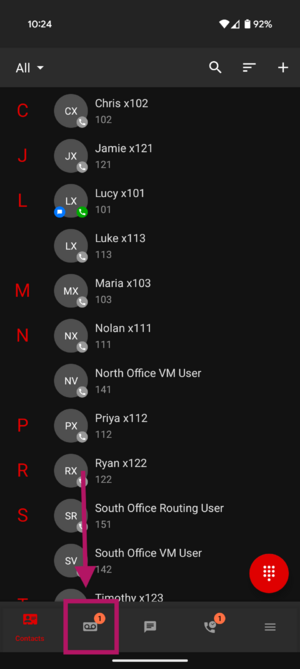
- Any new voicemails will appear in this section.
- Tap the Voicemail icon (looks like a cassette tape) at the bottom of the screen.
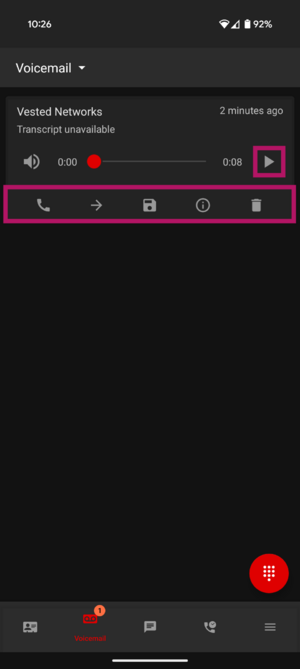
- Managing Your Voicemails For each voicemail, you can:
- ▶️ Play – Tap the play button to listen to the message.
- 📞 Call Back – Tap the phone icon to call the number that left the voicemail.
- ➡️ Forward – Tap the arrow icon to forward the voicemail.
- 💾 Save – Tap the save icon to move the voicemail to your “Saved” tab.
- ℹ️ More Info – Tap the info icon to view message details and more options.
- 🗑️ Delete – Tap the trash can icon to delete the voicemail.


If you have any questions about this process, or if you need assistance, please reach out to our Support Team by dialing HELP(4357) on your desk phone, calling (972) 924-6488, or submitting a ticket.